احصائيات المدونة
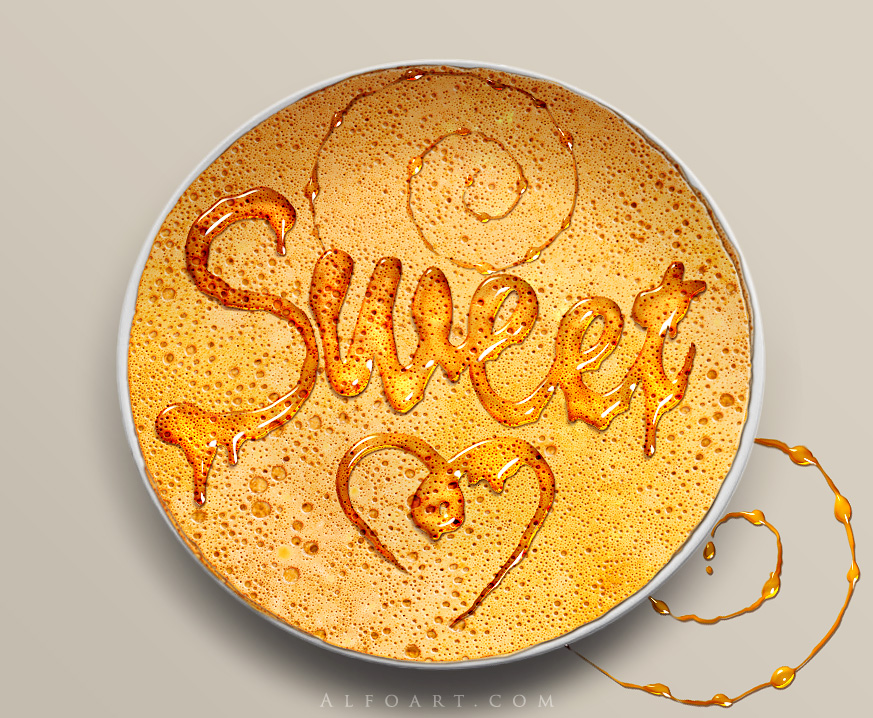
Used images:
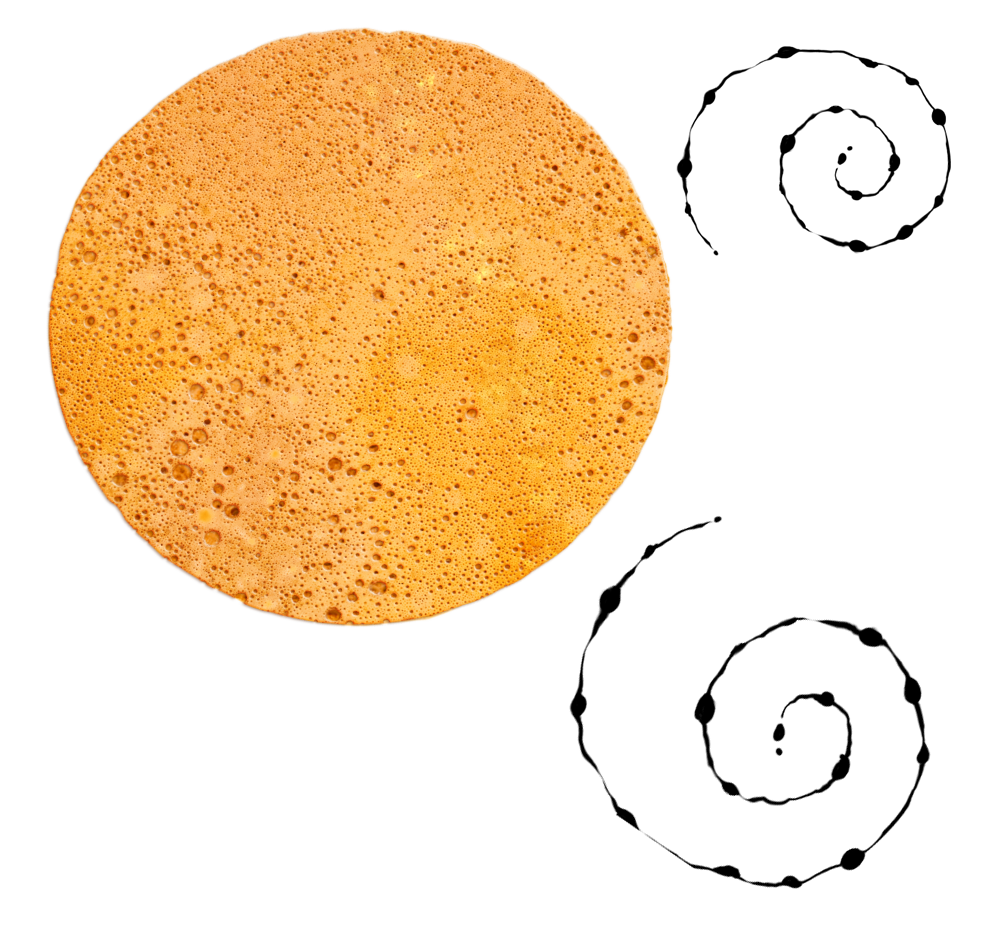
Thin Pancake(or Blintz, Blin) and honey drops) [link]
Plate [link]
Download psd file [link]
- Create a new document in Photoshop, Width around 900px.
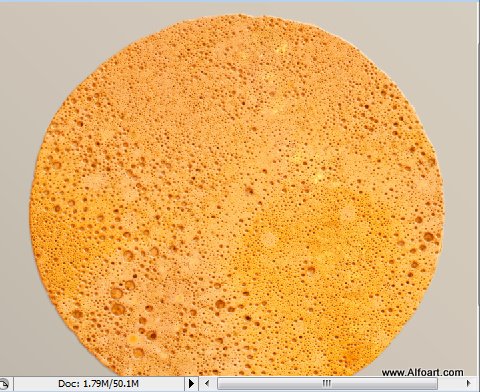
- Insert pancake image, move it to the center of the composition.
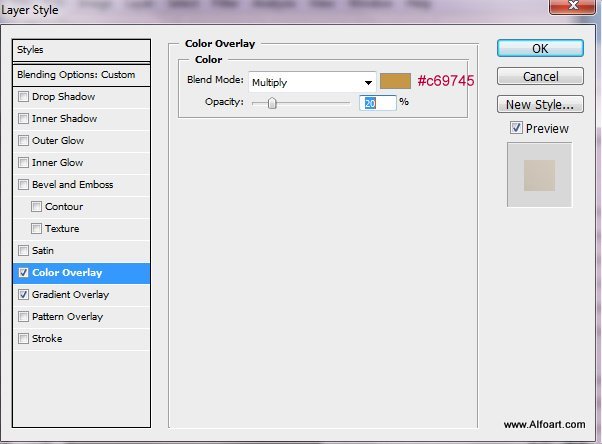
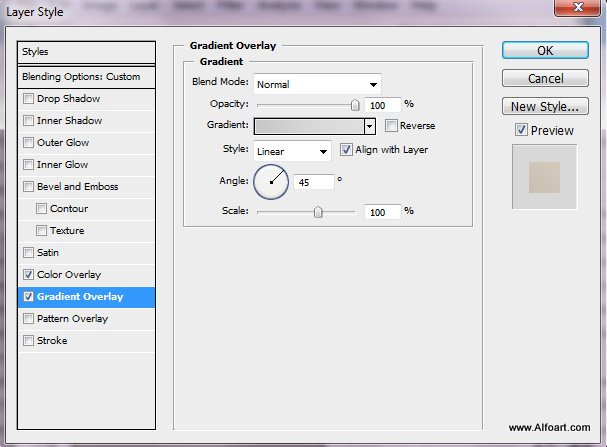
- Apply following layer style effects to the background layer.
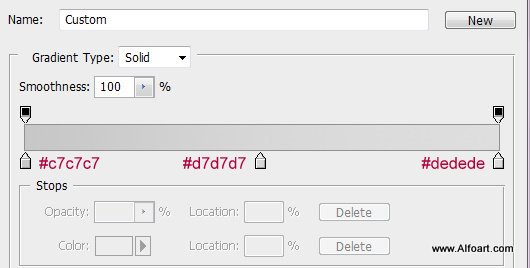
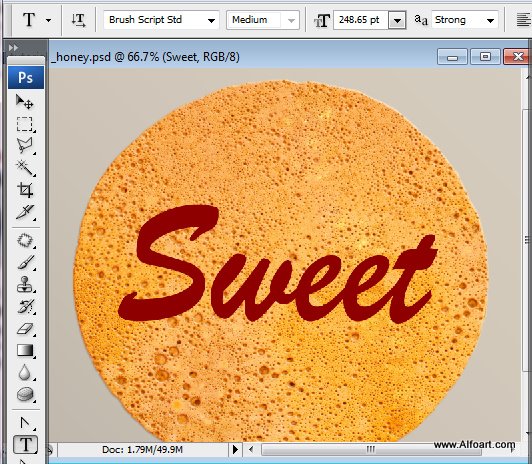
- Type a text with any handwriting style font. I used Brush Script std.
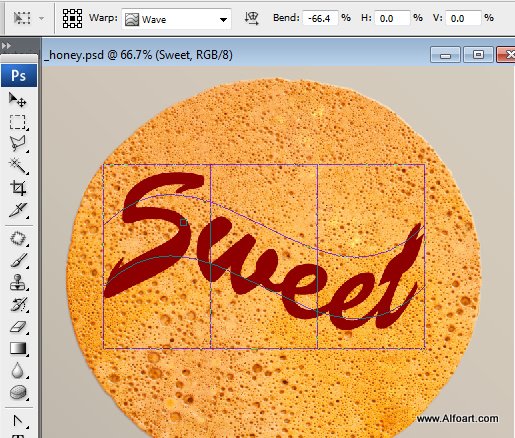
- Play with Warp transformation to create more natural handwriting and leaking effect. In other way, you may draw the "Sweet" sign without any font just using Brush tool.
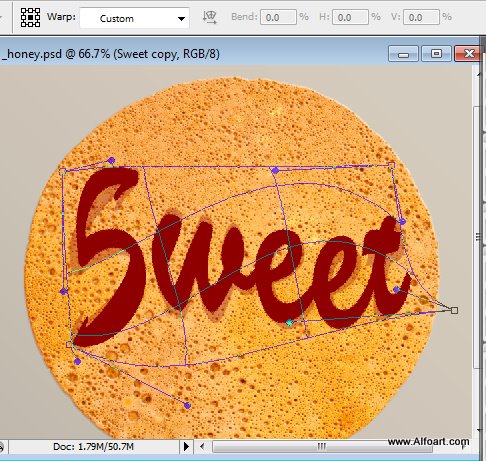
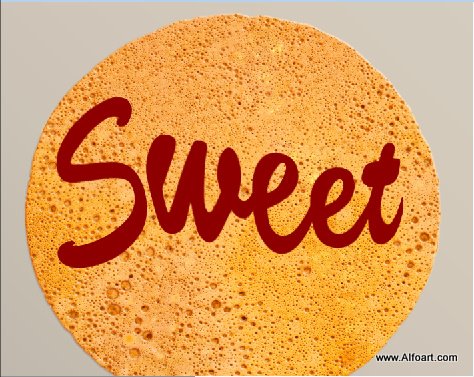
- Round letters contours with round Brush Tool.
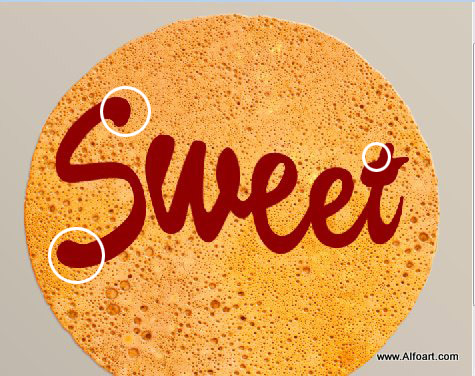
- You may add new elements - heart symbol for example. Create path with Pen Tool and Convert Point Tool.
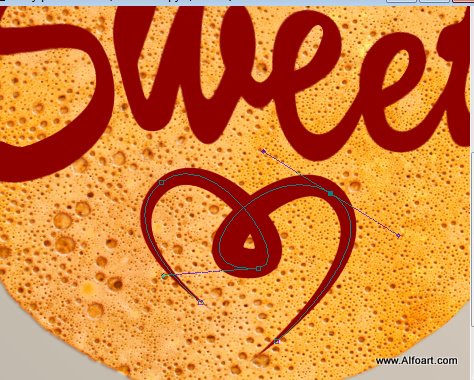
- Adjust Brush Tool settings, check box on Shape Dynamics parameter in Brushes Palette, then right click path and choose Stroke Path and Simulate Pressure.
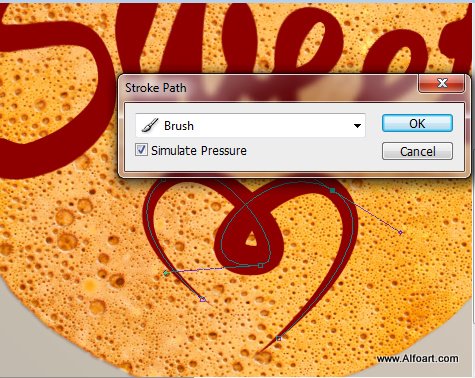
- Create leaking drops with small round Brush Tool.
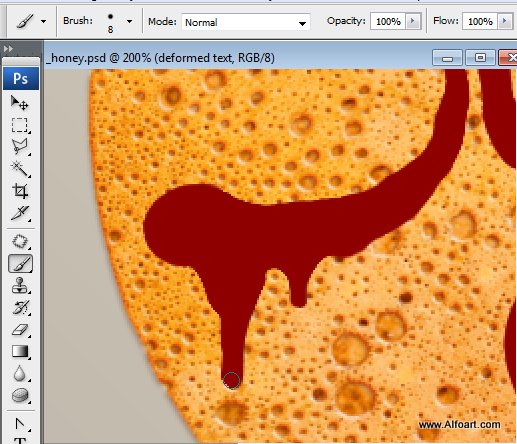
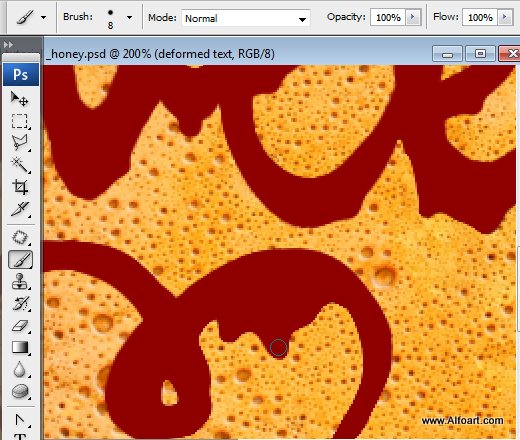
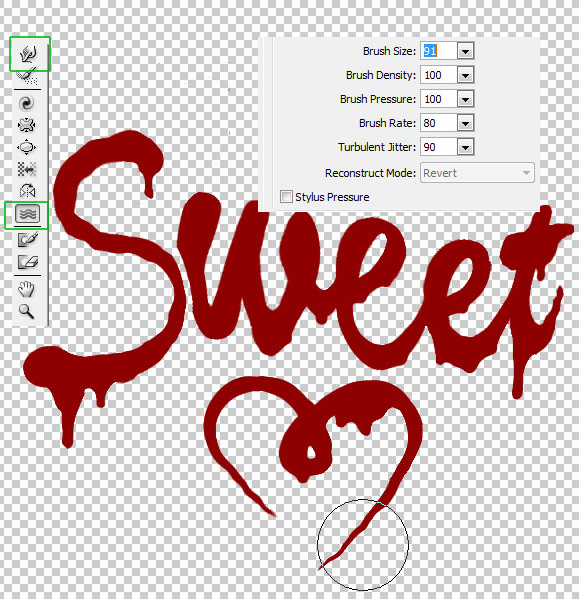
- Create wave effect by using Liquify filter - Forward Warp Tool and Turbulence Tool.
- Make 4 copies of the "Sweet" sign layer and apply Fill 0% to each of them.
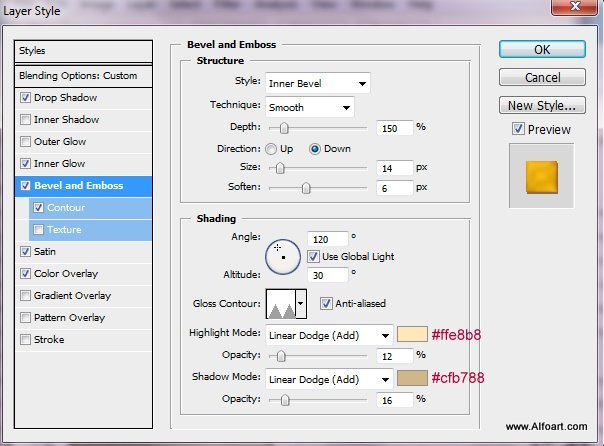
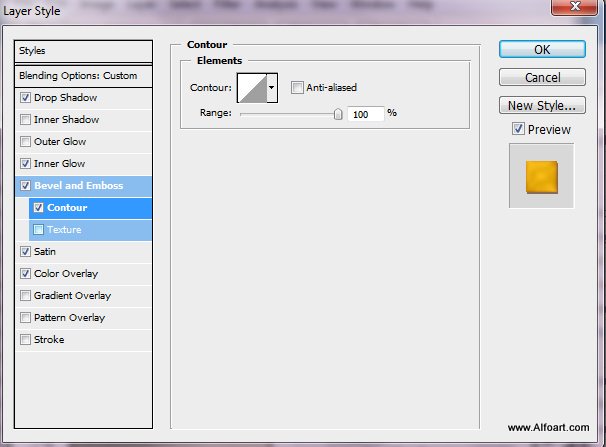
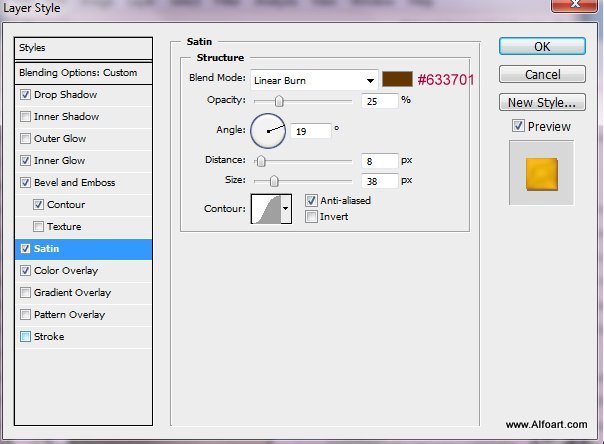
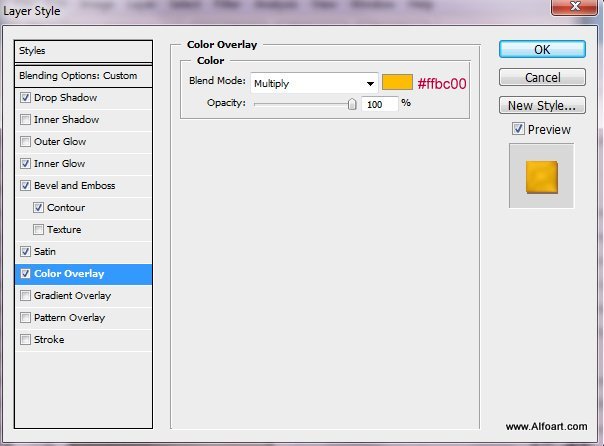
- Apply following effects to the bottom layer.
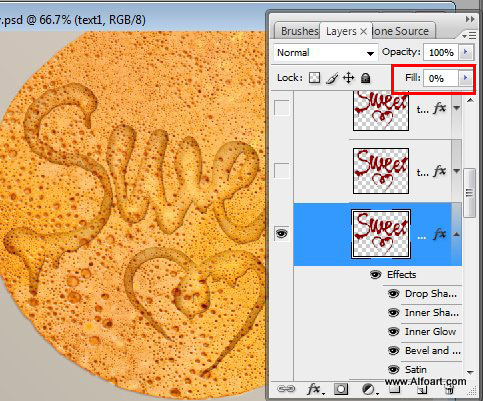
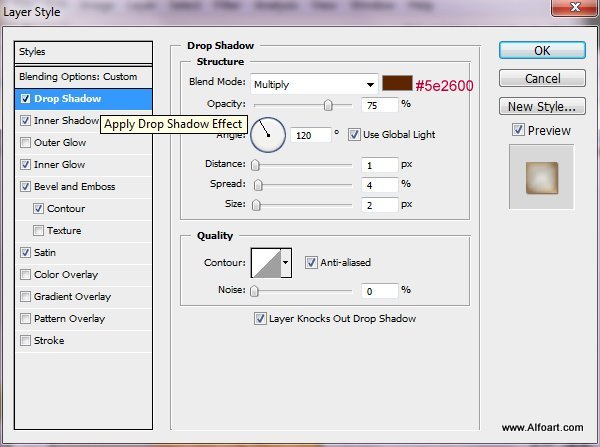
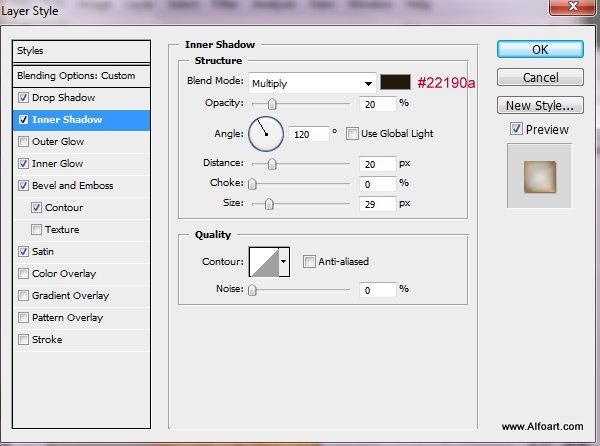
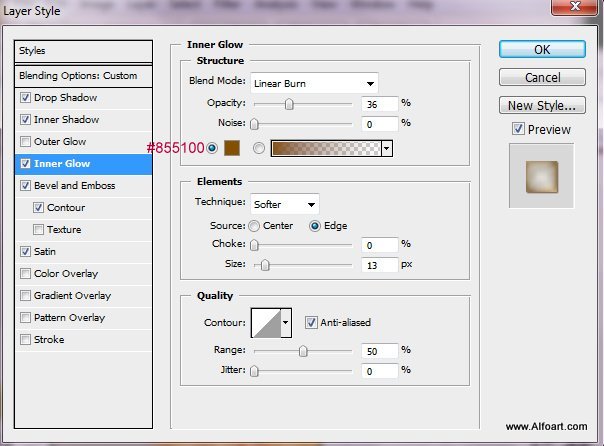
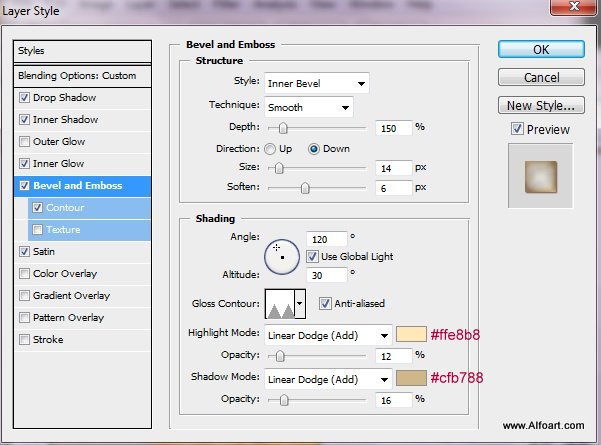
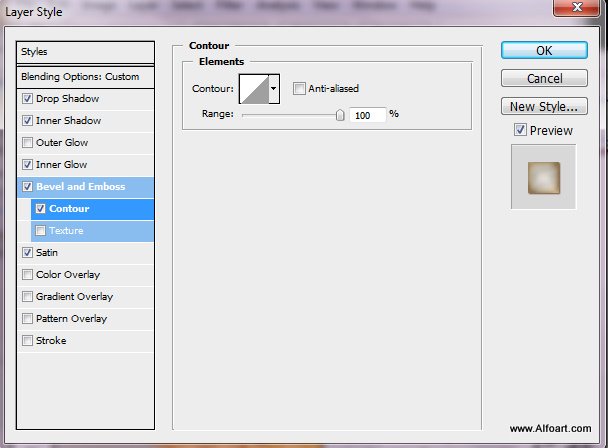
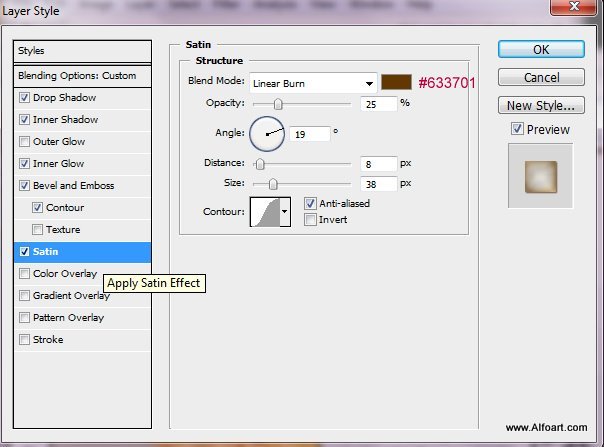
- Add Bevel and Emboss style effect to the second copy.
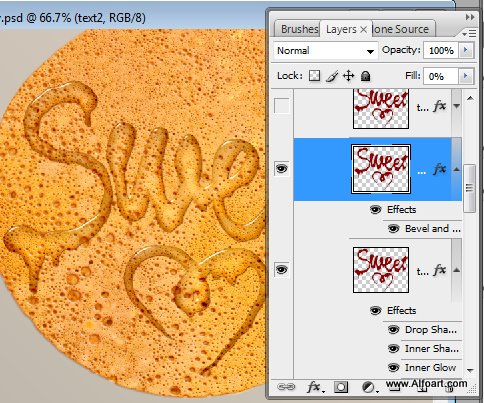
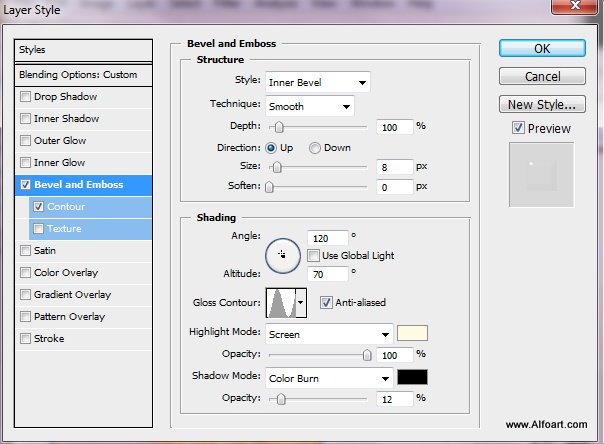
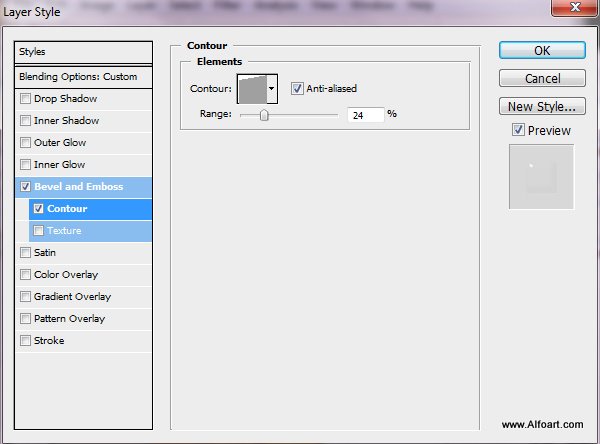
- Apply following settings to the third layer:
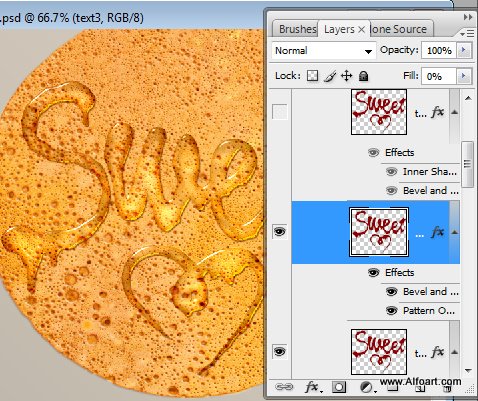
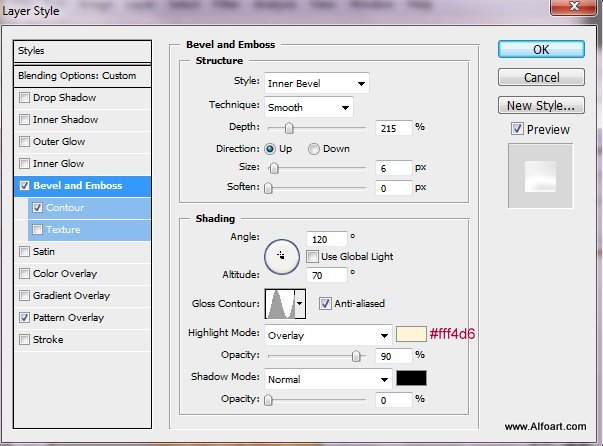
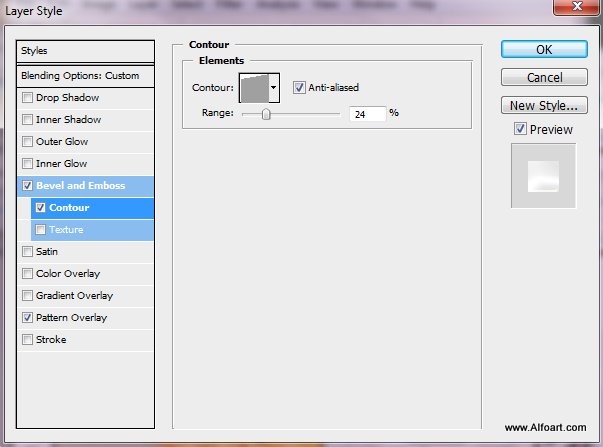
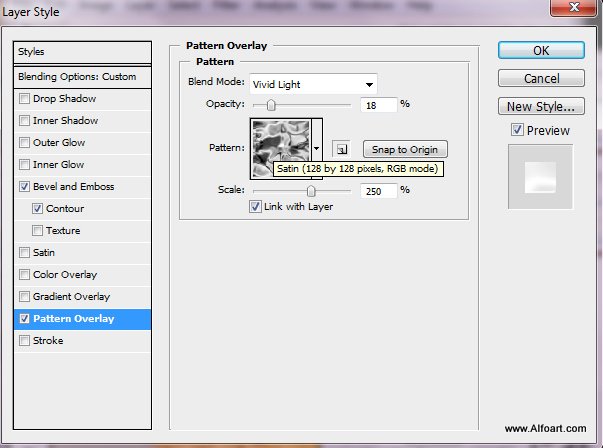
- Add layer style effects to the top "Sweet" text layer.
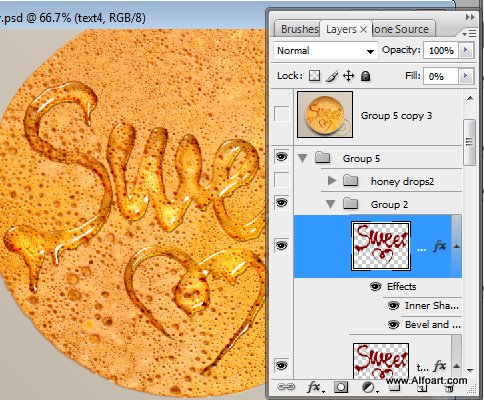
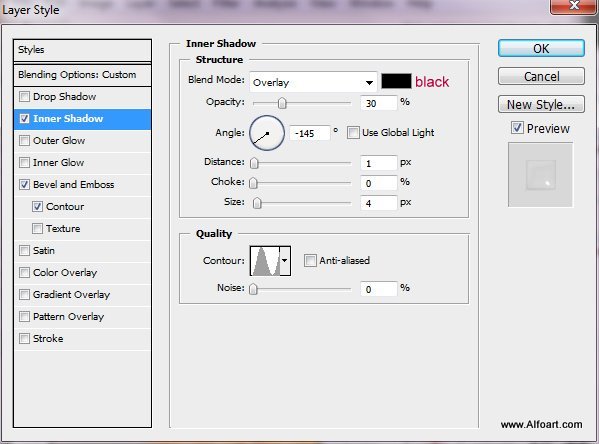
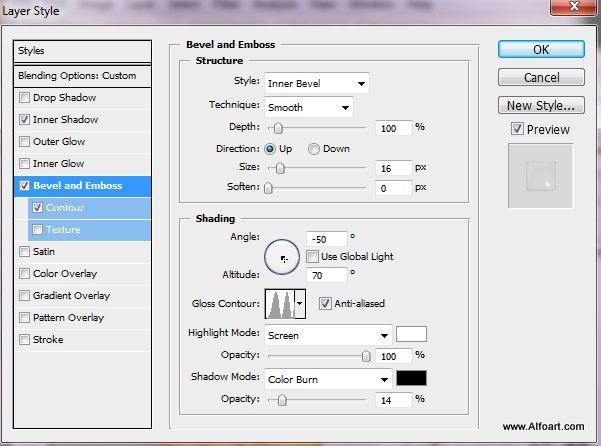
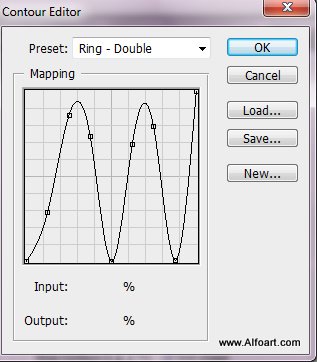
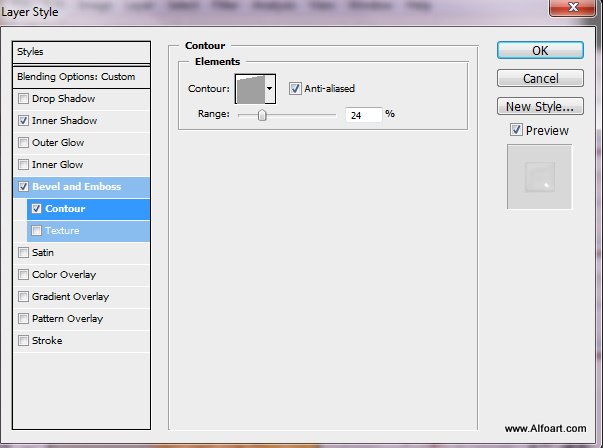
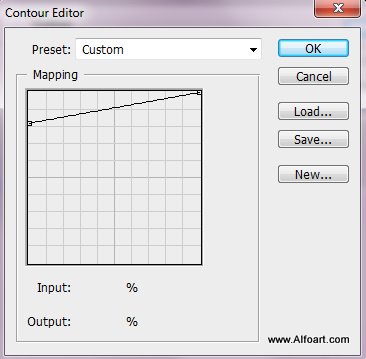
- Load selection for the one of the "Sweet" layers (Command/Ctrl + click Giraffe layer thumbnail).
- Create a new layer below of all "Sweet" layers and fill selection with dark brown color.
- Apply Gaussian Blur filter to created layer. In order to create shadow effect, move this layer little but down and left.
- Load selection for the "Sweet" layer again and cut out selected area from the shadow layer.
- You should get blurred dark contour around "Sweet" sign
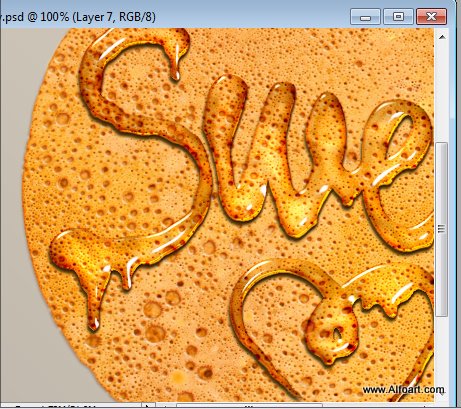
- Apply Linear Burn Blending Mode effect and Opacity 40%.
- Add Layer Mask to the shadow layer and fill it with black color, then restore shadow just for thick honey areas by using soft white Brush Tool in the Layer Mask.
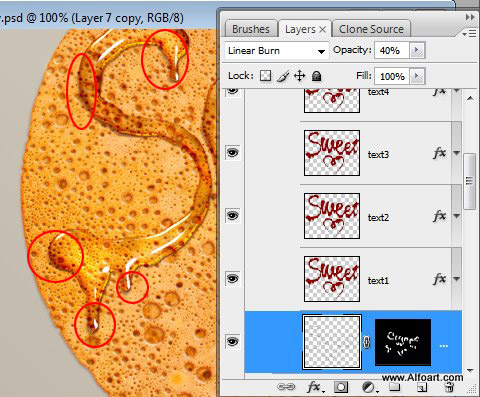
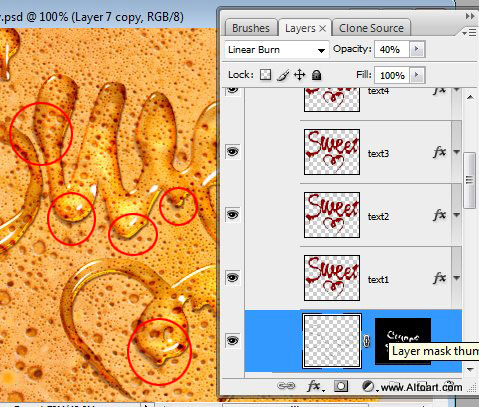
- Insert honey drops silhouette. Create honey effect by using the same way as for "Sweet" sign.
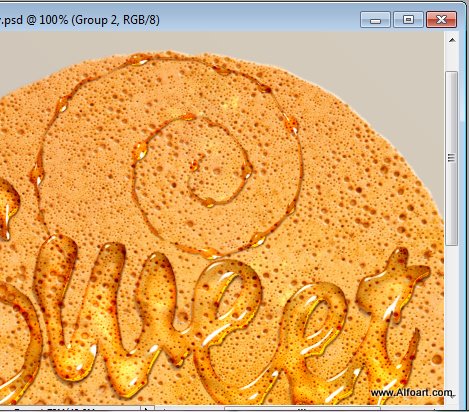
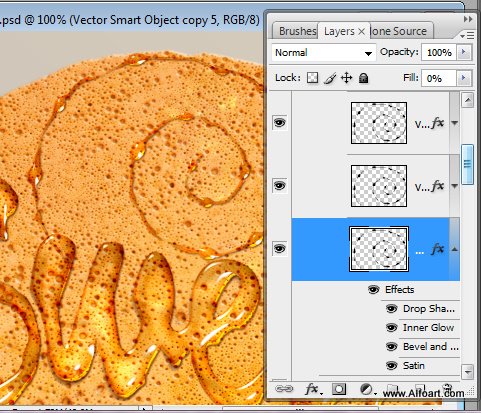
- Create four copies, but do not apply Inner shadow effect for the first layer. You may check out all other layer style effects in the PSD file.
- The pancake and sign look flat, let's put them into the plate.
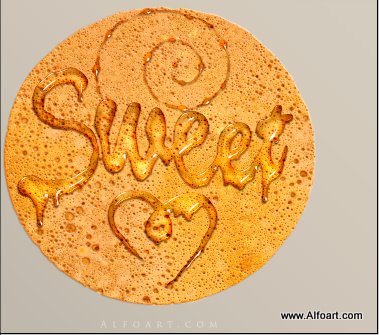
- Select plate shape in the original plate image, you may use Elliptical Marquee Tool. Copy plate shape and paste it below pancake layer.
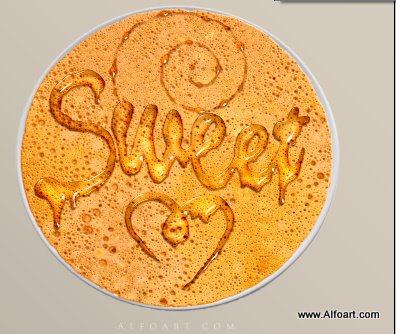
- Duplicate plate layer and put the duplicate above pancake, but below "Sweet" and honey drops layers.
- Apply Linear Burn Blending Mode and Opacity 65%.
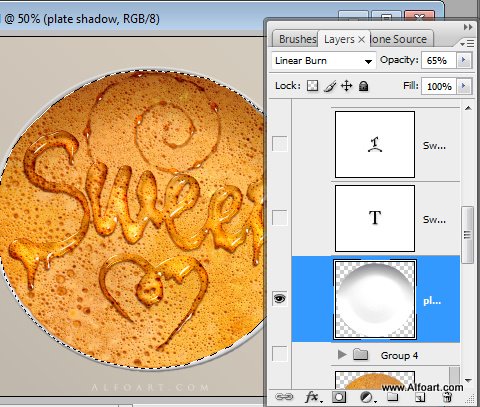
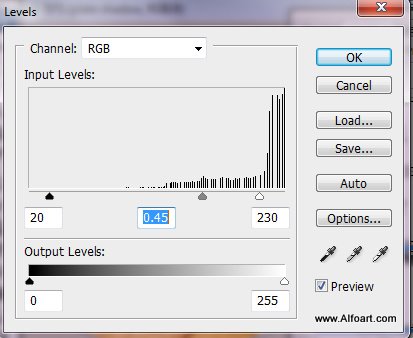
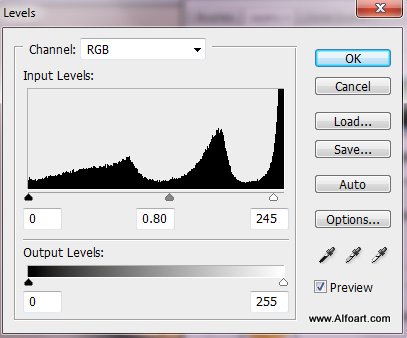
- Correct Levels for this layer.
- Select plate in the original layer again, but with the shadow area, make the smooth round selection - Select > Modify > Feature 3,5 - 5px.
- Paste plate with shadow below first plate layer. Apply Multiply Blending mode to it and Opacity 65%.
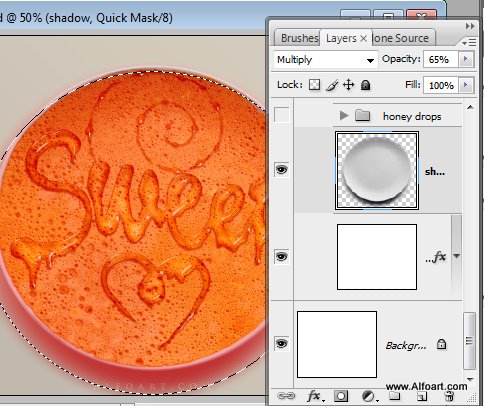
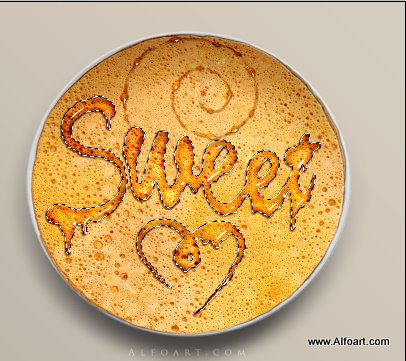
- You should get similar result.
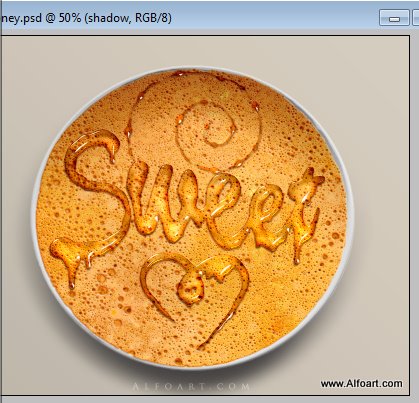
- Go to pancake layer. Load selection for "Sweet" sign and invert it - Select > Invert.
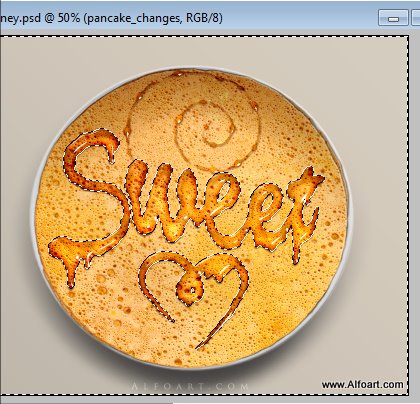
- Keep active selection and pancake layer, make selected area around "Sweet" sign lighter with Levels settings.
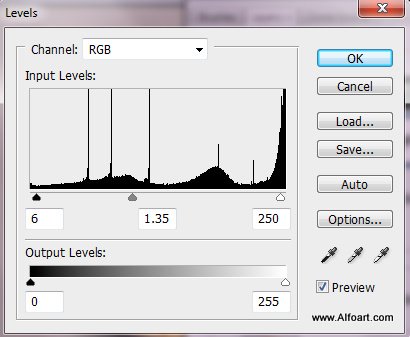
- Invert selection once again and correct pancake layer levels inside the sign.
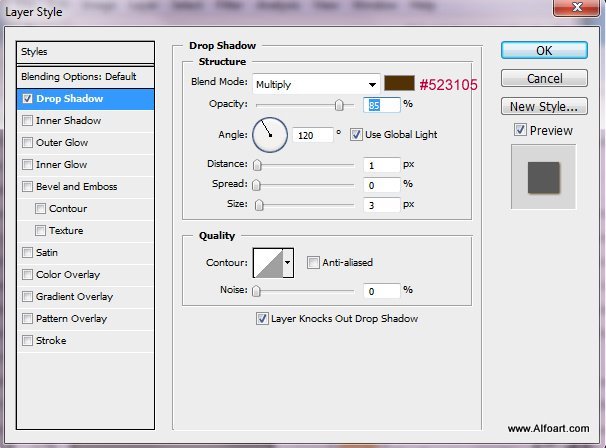
- Apply Drop Shadow effect to the pancake layer.
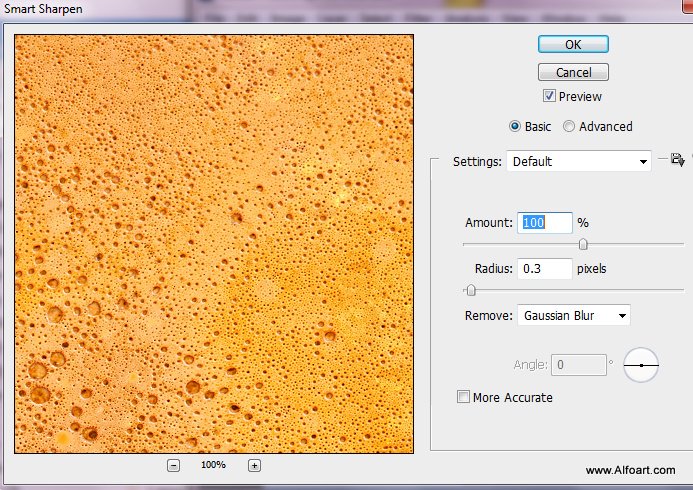
- Make pancake texture more sharpen. Filter > Sharpen > Smart Sharpen.
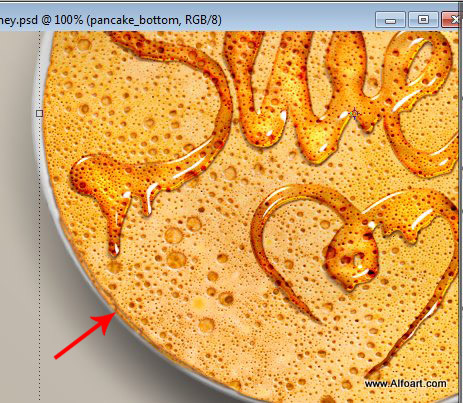
- You may duplicate pancake layer, rotate it and place it below original, to create effect like on the screen shot below.
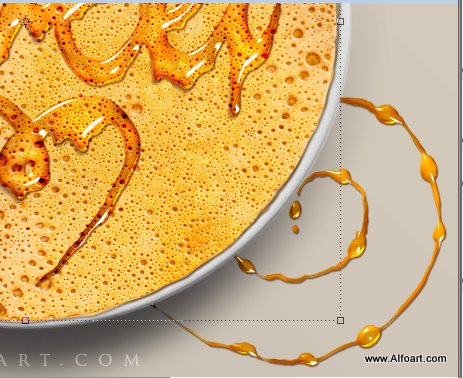
- Insert second honey drops shape and place it between plate and plate's shadow layers.
- Create 4 copies just like for the Sweet Honey sign, but use different layer style settings for the bottom copy.
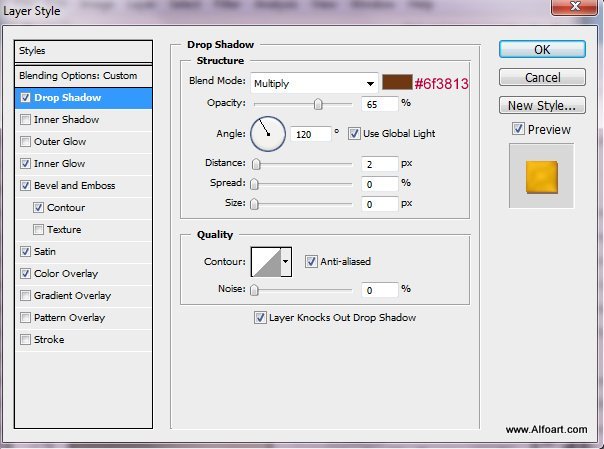
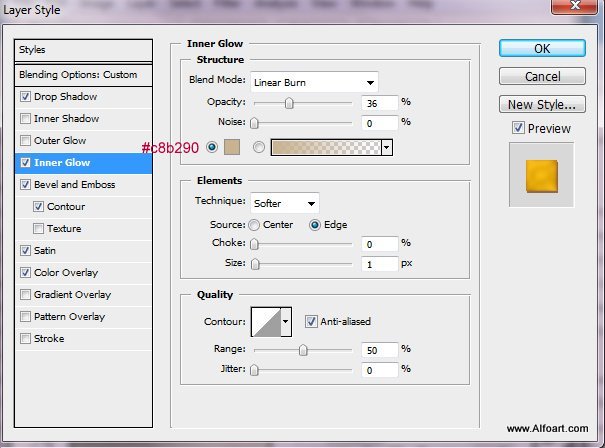
- Apply following settings for the bottom honey drops layer.
And here is result!
الاشتراك في:
تعليقات الرسالة (Atom)
ترجمني translate me


by : arab-alrab7on

![[link]](http://alfoart.com/images/honey_tutorial/textures.png)
0 التعليقات:
إرسال تعليق